How to Zoom Out on Your iPhone: Every Method
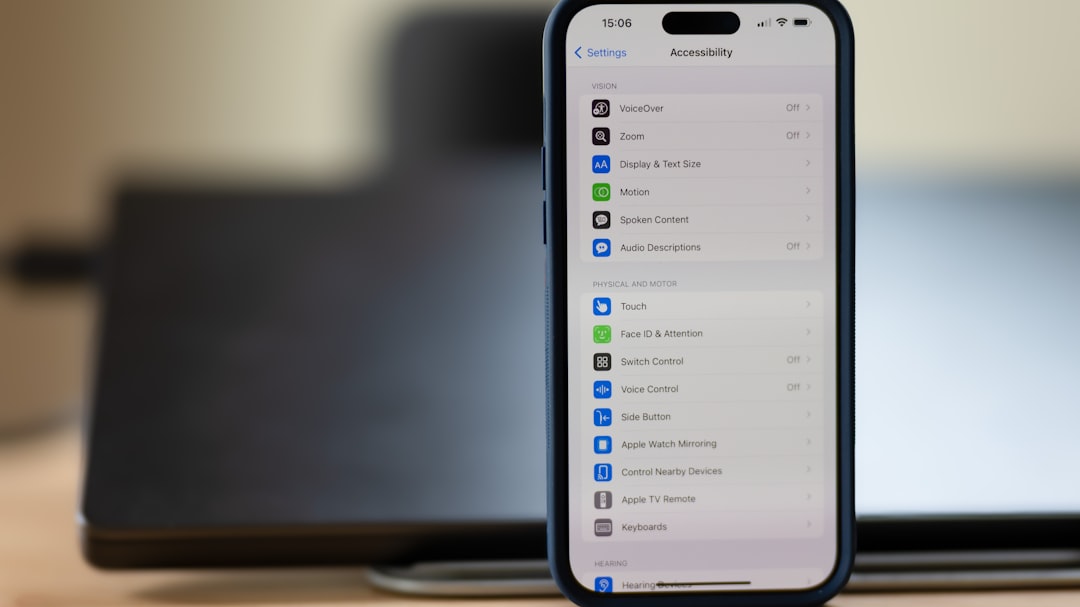
One second your iPhone looks perfectly normal — the next, everything on the screen has blown up to twice its size and you can barely read the icons. If you've typed "how do I zoom out on my iPhone" in a panic, you're in good company: it's one of the most searched iPhone questions of 2026. The good news is that the fix is quick, and once you understand what triggered it you can make sure it never catches you off guard again.
Why Your iPhone Screen Suddenly Looks Zoomed In
Your iPhone didn't malfunction. Almost every case of a magnified screen traces back to Apple's built-in Zoom accessibility feature, which is designed to help users with low vision by magnifying the entire display. The problem is that it can be triggered accidentally: the activation gesture — a double-tap with three fingers — is surprisingly easy to perform without meaning to, especially when you shift your grip on the phone. In rare cases, an iOS update can also flip the setting on without any input from you.
There are actually two separate "zoom" scenarios on an iPhone, and the fix depends on which one you're dealing with:
- App-level zoom — only content inside a specific app (Safari, Photos, Maps) is enlarged.
- System-level Accessibility Zoom — the entire screen, including the Home Screen and Lock Screen, is magnified.
How to Zoom Out Inside Apps (Safari, Photos, Maps)
This is the simplest case. If only the content inside an app is too large, a couple of gestures will sort it out immediately.
- Pinch to zoom out. In Safari, Photos, Mail and most other apps, place two fingers on the screen and bring them together (a "pinch" motion) to reduce the zoom level. Spreading your fingers apart zooms back in.
- Double-tap with one finger. In the Photos app, double-tapping a photo with one finger zooms in; double-tapping again zooms back out to fit the screen.
- Adjust text size in Safari. If a webpage's text is too large, tap the aA button in Safari's address bar, then tap the smaller "A" to reduce the font size to your preference.
- Maps special gesture. In Apple Maps, double-tap and hold on the screen, then drag downward to zoom out.
How to Zoom Out When the Entire iPhone Screen Is Magnified
This is what most people mean when they ask how to zoom out on an iPhone — the whole display, including the Home Screen or Lock Screen, is magnified. Here are the methods in order of speed.
Method 1: The Three-Finger Double-Tap (Fastest Fix)
The same gesture that accidentally turns Zoom on will also turn it off. According to Apple Support, if you can't access Settings because your Home Screen icons are magnified, double-tap anywhere on the display with three fingers simultaneously. Your screen should snap back to its normal size instantly. If it doesn't work on the first try, attempt it again — the three fingers need to tap at exactly the same moment.
Method 2: Adjust Zoom Level Without Turning It Off
If the screen is zoomed in so far that you can barely navigate, you can reduce the magnification without fully turning off Zoom. Double-tap with three fingers and, without lifting your fingers after the second tap, slide them downward — this reduces the zoom level on the fly. You can also triple-tap with three fingers to bring up a Zoom Level slider you can drag.
Method 3: Turn Off Zoom in Settings (Permanent Fix)
Once you can navigate normally, the best move is to disable Zoom entirely so it can't be triggered by accident again. Head to Settings → Accessibility → Zoom, then tap the toggle to turn Zoom off. If the toggle is green, Zoom is active — a firm tap will disable it.
- Open the Settings app.
- Tap Accessibility.
- Tap Zoom.
- Toggle the Zoom switch to the off position (grey).
You can refer to the official Apple Support guide for iPhone Zoom for further details on the available Zoom settings, including Full Screen Zoom, Window Zoom, and the Zoom Controller.
Method 4: Use Siri
If the screen is so magnified that you can't tap the right buttons, try a hands-free approach. Activate Siri (press and hold the Side button or say "Hey Siri") and say "Turn off Zoom." Siri can toggle the accessibility setting without you needing to navigate the magnified screen.
Method 5: Force Restart Your iPhone
If the three-finger gesture isn't responding and Siri isn't available, a force restart often clears the problem. For modern iPhones (iPhone 8 and later with Face ID or Touch ID on the side button):
- Quickly press and release the Volume Up button.
- Quickly press and release the Volume Down button.
- Press and hold the Side button until the Apple logo appears.
Once the phone restarts, navigate to Settings → Accessibility → Zoom and toggle it off to prevent it from recurring.
Method 6: Use a Mac (Finder) or PC (iTunes)
If your iPhone screen is so magnified that you can't even enter your passcode to unlock it, you can disable Zoom from a computer. Connect your iPhone with a USB cable, then:
- On a Mac (macOS Catalina or later): Open a Finder window, select your iPhone in the sidebar, and click Configure Accessibility.
- On a Mac (macOS Mojave or earlier) or a Windows PC: Open iTunes, select your device, and click Configure Accessibility.
In the Accessibility configuration panel, uncheck the Zoom checkbox and click OK. This will return your screen to its normal size immediately.
How to Stop Accidentally Enabling Zoom in the Future
The best way to keep Zoom from surprising you again is to turn it off entirely via Settings → Accessibility → Zoom as described above. If you do want to keep Zoom available for occasional use, consider these precautions:
- Remove it from Accessibility Shortcut. Go to Settings → Accessibility → Accessibility Shortcut and deselect Zoom so that triple-clicking the Side or Home button no longer toggles it.
- Be aware of the three-finger double-tap. This is the most common accidental trigger — knowing it exists makes it much easier to avoid.
- Keep iOS updated. Go to Settings → General → Software Update to check for the latest version. Software updates regularly patch accessibility bugs that can cause unexpected behavior like a screen getting stuck in Zoom mode.
- Consider Display Text Size instead. If you want larger text rather than a zoomed screen, go to Settings → Display & Brightness → Text Size and drag the slider. This enlarges text across the system without activating the Zoom overlay.
Quick Reference: Which Zoom Method to Use
- Safari or Photos zoomed in only → Pinch two fingers together, or double-tap with one finger (Photos).
- Whole screen zoomed in, can navigate → Three-finger double-tap, then disable Zoom in Settings.
- Whole screen zoomed in, can't navigate → Three-finger double-tap to reduce zoom, or ask Siri to turn it off.
- Screen so zoomed in you can't unlock → Force restart, or connect to Finder/iTunes on a computer.
For a broader overview of all iPhone accessibility tools, the Apple iPhone Accessibility page is worth bookmarking.
FAQ
Why did my iPhone screen suddenly zoom in by itself?
The most common cause is accidentally activating Apple's Zoom accessibility feature with an unintentional three-finger double-tap on the screen. In some cases, a software update can also toggle the setting on. It's a software issue, not a hardware fault, and is easy to fix.
How do I zoom out on my iPhone when the screen is so magnified I can't tap anything?
Try a three-finger double-tap first — tap anywhere on the screen twice in quick succession using three fingers at the same time. If that fails, use Siri (hold the Side button and say 'Turn off Zoom') or perform a force restart by pressing Volume Up, then Volume Down, then holding the Side button until the Apple logo appears.
How do I permanently stop my iPhone from zooming in accidentally?
Go to Settings → Accessibility → Zoom and toggle Zoom off. You can also go to Settings → Accessibility → Accessibility Shortcut and remove Zoom from the list so that triple-clicking the Side button no longer activates it.
Is the iPhone Zoom feature the same as pinch-to-zoom in apps?
No. Pinch-to-zoom is a standard in-app gesture that only enlarges content within a single app like Safari or Photos, and is reversed by pinching your fingers back together. The Accessibility Zoom feature magnifies the entire system interface — Home Screen, Lock Screen, Settings and all — and requires a three-finger double-tap or a Settings change to disable.