How to Restart iPhone: Complete Guide for Every Model (2026)
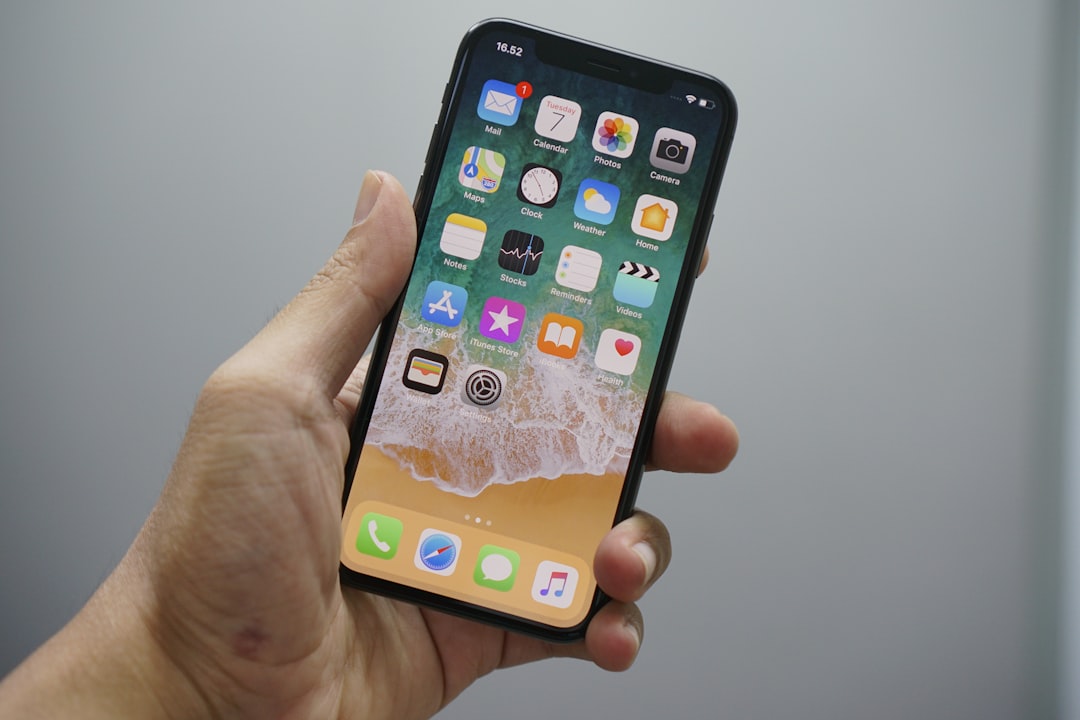
Your iPhone is sluggish, an app has locked up, or the screen has gone completely dark and unresponsive — chances are, the fastest fix is also the simplest one: a restart. Restarting your iPhone clears temporary memory, closes rogue background processes, and refreshes the operating system, resolving the vast majority of everyday software hiccups in seconds without touching a single byte of your personal data. Yet millions of users search for the steps every day, because the exact button combination depends entirely on which iPhone model you own. This guide covers every method — from a routine soft restart to a full force restart for frozen devices — verified against the latest iOS in 2026.
Why Restarting Your iPhone Actually Works
Think of your iPhone's RAM as a workspace that accumulates clutter over time. Restarting wipes that workspace clean, stops background processes that may be causing glitches, and gives iOS a clean slate. According to Apple's own support documentation, restarting is the first troubleshooting step recommended for most software-related issues. Many tech experts go further, suggesting a weekly restart as basic maintenance to keep performance sharp — daily before bed if you rely heavily on the device.
It's also worth being crystal clear about what a restart is not: a normal restart or force restart does not delete photos, apps, contacts, messages, or settings. Only a full factory reset erases data, and that is an entirely separate process requiring deliberate steps inside Settings.
Method 1: Soft Restart (iPhone X, 11, 12, 13, 14, 15, 16, and All Face ID Models)
Use this when your iPhone is responding normally but feels slow, has an unresponsive app, or you simply want a routine refresh. This is Apple's recommended standard method for all Face ID iPhones.
- Press and hold the Side button together with either the Volume Up or Volume Down button at the same time.
- Keep holding both until the "slide to power off" slider appears on screen — usually two to three seconds.
- Drag the slider from left to right. The screen will go dark as the device shuts down.
- Wait at least 30 seconds to make sure the phone has fully powered off.
- Press and hold the Side button on the right edge of the phone until the Apple logo appears, then release.
Your iPhone will boot back up normally within about 30–60 seconds. For the official Apple walkthrough, visit Apple's Restart Your iPhone support page.
Method 2: Soft Restart (iPhone SE 1st Gen, iPhone 6s, and Older Home Button Models)
Older iPhones with a physical Home button use a simpler two-step method:
- Press and hold the Side button (or the Top button on very early iPhone SE and iPhone 5 models) until the power-off slider appears.
- Drag the slider to shut down. Wait 30 seconds, then hold the same button until the Apple logo appears to turn the phone back on.
You do not need to press the Home button at any point during a standard restart on these models.
Method 3: Restart via Settings (All Models — Great When Buttons Are Sticky)
Apple built a software shortcut directly into iOS that lets you shut down without using any physical buttons. This is especially handy if your Side button feels unresponsive or stiff:
- Open the Settings app.
- Tap General.
- Scroll all the way to the bottom and tap Shut Down.
- Drag the power-off slider to turn the iPhone off.
- After 30 seconds, press and hold the Side button until the Apple logo appears to power back on.
Important: If your iPhone is already frozen and unresponsive, the Settings app won't open. Skip straight to the force restart method below.
Method 4: Force Restart — When Your iPhone Is Completely Frozen
A force restart is a hardware-level reboot that bypasses the software entirely. It's designed for emergencies: a frozen touchscreen that won't register taps, a device stuck on the Apple logo, apps that won't close, or a completely black screen with no response. Critically, it does not erase your data — all photos, messages, and settings remain intact afterward.
The button sequence varies by model, so find yours below:
iPhone 8, SE (2nd and 3rd Gen), X, XR, XS, 11, 12, 13, 14, 15, 16, and All Later Models
- Quickly press and release the Volume Up button.
- Quickly press and release the Volume Down button.
- Press and hold the Side button and keep holding it — do not release when the power-off slider appears.
- Release the Side button only when the Apple logo appears on screen (about 10 seconds).
The entire sequence — pressing Volume Up, Volume Down, then holding Side — should be performed fluidly within about one second. If the sequence isn't registering, try pressing the volume buttons more firmly and more quickly before holding the Side button.
iPhone 7 and iPhone 7 Plus
The iPhone 7's solid-state Home button requires a unique combination:
- Press and hold the Volume Down button and the Side (Sleep/Wake) button simultaneously.
- Keep holding both for about 10 seconds until the Apple logo appears.
- Release both buttons when the logo shows.
iPhone 6s, iPhone SE (1st Gen), and Older Models
- Press and hold both the Home button and the Side (or Top) button simultaneously.
- Keep holding for 10–20 seconds until the Apple logo appears on screen.
- Release both buttons and wait for the phone to reboot.
Method 5: Restart Without Any Buttons (AssistiveTouch and Siri)
If your physical buttons are damaged, Apple's accessibility features offer button-free alternatives.
Using AssistiveTouch
AssistiveTouch creates a virtual on-screen button that can replicate hardware button functions. According to Apple's official AssistiveTouch support page, you can use it to restart your device entirely through the on-screen menu:
- Go to Settings > Accessibility > Touch > AssistiveTouch and toggle it on. A floating gray circle will appear on your screen.
- Tap the floating circle to open the AssistiveTouch menu.
- Navigate to Device > More > Restart.
- Tap Restart in the confirmation prompt.
Pro tip: Enable AssistiveTouch now, even if you don't need it today. If your Side button ever breaks, you'll be glad it's already set up, because this method only works when the touchscreen is responsive.
Using Siri
On iPhones running iOS 16 or later, you can simply say "Hey Siri, restart my iPhone." Siri will prompt you to confirm, and after you say "Restart," the phone will power off and back on automatically — no hands required.
Common Pitfalls and Troubleshooting Tips
- Force restart not working? Double-check you're using the correct sequence for your model and that you're pressing the volume buttons quickly enough before holding the Side button. A thick phone case can also physically block the buttons — remove it and try again.
- iPhone won't respond at all after the force restart? The battery may be completely drained. Plug the device into a charger and wait at least 30 minutes before trying again.
- iPhone keeps restarting on its own? Spontaneous restart loops are typically caused by a software bug (install the latest iOS update via Settings > General > Software Update), a degraded battery (check Settings > Battery > Battery Health), a problematic third-party app, or full storage. Overheating — when the device gets too hot during intensive tasks or charging — can also trigger automatic shutdowns.
- Restart vs. Reset — don't confuse them. A restart simply reboots the phone. "Reset All Settings" removes your preferences but keeps your data. A factory reset (Erase All Content and Settings) wipes everything. Always try a restart first before escalating to anything more drastic.
How Often Should You Restart Your iPhone?
Apple recommends restarting at least once a week to keep performance optimal. If you notice slowdowns, app crashes, connectivity issues, or unusually fast battery drain, restart immediately — it resolves the majority of minor software glitches without any data loss. For additional guidance on keeping your device running smoothly, Apple's iPhone Support hub and the MacObserver restart guide are reliable references.
FAQ
Will restarting my iPhone delete my photos, apps, or data?
No. Neither a standard restart nor a force restart deletes any data. All your photos, videos, messages, contacts, apps, and settings remain completely safe. The only thing you might lose is unsaved work in an app that was actively running at the moment of the restart. Only a factory reset (Erase All Content and Settings) erases data.
What is the difference between a soft restart and a force restart?
A soft restart is the standard shutdown-and-reboot sequence that uses the software power-off slider. Use it when your iPhone is still responding to touch. A force restart is a hardware-level reboot that bypasses the software entirely — designed for emergencies when the screen is frozen, completely black, or stuck on the Apple logo and won't respond to any taps.
My iPhone is stuck in a restart loop. What should I do?
A restart loop is usually caused by a bad iOS update, a problematic app, a degraded battery, or insufficient storage. Try a force restart first. If that doesn't help, update iOS via Settings > General > Software Update. If your iPhone can't stay on long enough to update, you may need to put it into Recovery Mode using a computer and iTunes or Finder. Check battery health under Settings > Battery > Battery Health, and free up storage if it's nearly full.
How do I restart my iPhone if the Side button is broken?
You have two software-based options. First, go to Settings > General > Shut Down to power off the device, then connect it to a charger to turn it back on. Second, enable AssistiveTouch under Settings > Accessibility > Touch > AssistiveTouch, then use the on-screen button to navigate to Device > More > Restart. You can also ask Siri to restart your iPhone if you're running iOS 16 or later.
Sources
- Restart your iPhone — Apple Support
- Use AssistiveTouch on your iPhone — Apple Support
- How to Restart iPhone (2026): Complete Guide for All Models — iPhone Tonic
- How to Restart iPhone: Easy Methods for Every iPhone Model — MacObserver
- How to Restart Your iPhone: A Complete Step-by-Step Guide — Beebom Gadgets
- How To Restart iPhone: Force Restart a Frozen Phone & Soft Reboot (2026) — DevX