How to Factory Reset iPhone 13 Pro Max (2026 Guide)
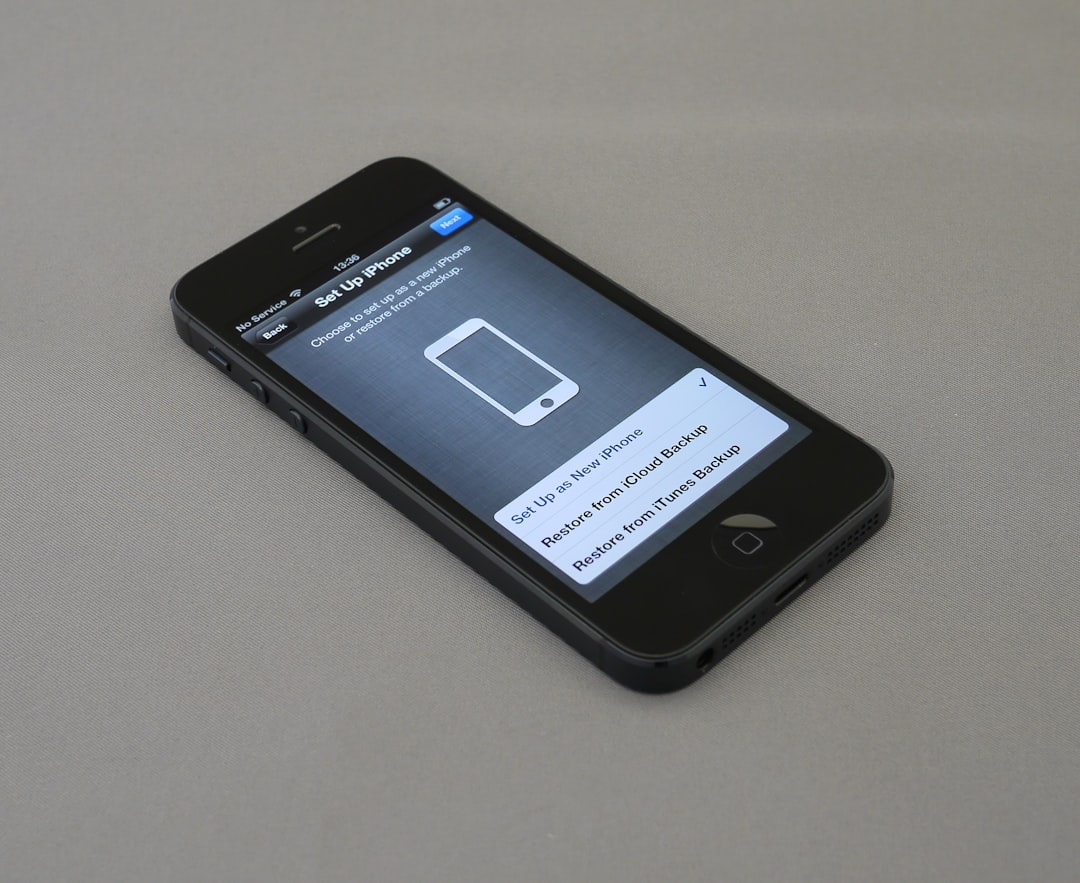
Whether you're selling your iPhone 13 Pro Max, passing it on to a family member, troubleshooting a persistent software glitch, or just craving a completely clean slate, a factory reset is the nuclear option — and sometimes it's exactly what you need. Done right, the whole process takes less than ten minutes of hands-on time. Done wrong, you could lose years of photos, get locked out by Activation Lock, or end up with a phone that won't even activate. This guide walks you through every method — from the easiest in-phone option to the computer-based recovery approach — and flags the pitfalls that trip up most people.
Why You Might Need to Factory Reset Your iPhone 13 Pro Max
A factory reset is the right move in several situations: you're trading in or selling the device (to make sure all personal data, passwords, and saved payment methods are completely removed), you're gifting it to someone who needs their own Apple ID setup, or you're dealing with software problems — random restarts, app crashes, or sluggishness — that a simple force-restart can't fix. It's also useful after a major iOS update leaves the device behaving oddly.
Before You Do Anything: The Essential Pre-Reset Checklist
Skipping this checklist is how people lose irreplaceable data. Work through every item before touching the reset option.
- Back up to iCloud. Open Settings, tap your name at the top, then go to iCloud > iCloud Backup > Back Up Now. Keep the phone on Wi-Fi until it finishes and note the timestamp — that confirms the backup is current.
- Back up to a computer (optional but recommended). Connect your iPhone to a Mac and open Finder, or connect to a Windows PC and open the Apple Devices app. Select your iPhone, choose Back Up Now, and tick "Encrypt local backup" if you want passwords saved. This gives you a second safety net.
- Know your Apple ID password. iOS will ask for it mid-reset to disable Activation Lock. Without it, the reset process simply will not complete — your passcode alone is not enough.
- Cancel any App Store subscriptions you no longer want. Subscriptions keep billing after a wipe, so deal with them first.
- Unpair your Apple Watch. Do this from the Watch app on the iPhone so the watch deregisters cleanly.
- Decide what to do with your SIM. If you use a physical SIM card and are giving the phone away, eject and keep the card. If you use an eSIM, decide now whether to erase it — erasing it means contacting your carrier to reactivate the line on another device.
- Sign out of iCloud if selling. After the backup, go to Settings > [Your Name] > Sign Out. This removes the device from your Apple account before the wipe, which is the cleanest way to prevent Activation Lock issues for the next owner.
For the full official guidance on backing up and restoring, see Apple Support's restore-from-backup page.
Method 1: Factory Reset Directly from Settings (Recommended)
This is the fastest and simplest method when your iPhone is working normally and you know your Apple ID credentials.
- Open the Settings app.
- Scroll down and tap General.
- Scroll to the very bottom and tap Transfer or Reset iPhone.
- Tap Erase All Content and Settings.
- Tap Continue when prompted.
- Enter your screen passcode if asked.
- Enter your Apple ID password when prompted — this disables Activation Lock and signs the device out of iCloud.
- Tap Erase iPhone, then confirm again by tapping Erase Now.
- Wait while the iPhone wipes itself. The screen will show a progress bar, and when it finishes, the familiar "Hello" setup screen appears.
What gets erased: Everything — apps, photos, messages, settings, accounts, and saved passwords. The device is returned to exactly the state it was in when it left the factory.
What does NOT get erased by choosing "Reset All Settings" instead: If you only pick Reset All Settings (a different option in the same menu), your contacts, photos, videos, and calendar data remain intact. Only settings like Wi-Fi passwords, display brightness, and notification preferences are reset. Use this milder option first if you're troubleshooting; escalate to a full erase only if the problem persists.
Method 2: Force-Restart (Not a Factory Reset — But Often Confused With One)
This is arguably the most common mix-up. A force-restart — sometimes called a "hard reset" — is just a forced reboot. It deletes absolutely nothing. If your iPhone 13 Pro Max is simply frozen or unresponsive, this is almost certainly what you actually want:
- Quickly press and release the Volume Up button.
- Quickly press and release the Volume Down button.
- Press and hold the Side button until the Apple logo appears, then release.
The phone restarts in seconds, all your data is safe, and most freezes are resolved. Only proceed to a full factory reset if force-restarting doesn't fix the underlying problem.
Method 3: Factory Reset via Computer (Recovery Mode)
Use this method when your iPhone won't turn on, is stuck on the Apple logo, displays an error you can't dismiss, or is disabled after too many wrong passcode attempts. As of 2026, Apple's recommended computer tools are Finder on Mac and the Apple Devices app on Windows — iTunes is no longer the primary recommendation for managing iOS devices on modern systems.
- Make sure your Mac (Finder) or Windows PC (Apple Devices app) is fully updated.
- Connect the USB cable to your computer but leave the iPhone disconnected for now.
- Fully power off your iPhone 13 Pro Max.
- Enter Recovery Mode: While connecting the iPhone to the cable, immediately press and quickly release Volume Up, then quickly press and release Volume Down, then press and hold the Side button until the recovery-mode screen (a cable pointing to a computer icon) appears. Do not release the Side button when you see the Apple logo — keep holding until the recovery screen shows.
- On your Mac, Finder will detect the device and display a prompt to Update or Restore. On Windows, the Apple Devices app will show a similar dialog.
- Click Restore to wipe the device and reinstall the latest version of iOS. (Choose Update only if you want to attempt a software fix without erasing data.)
- Confirm the action, then wait — the computer downloads the latest iOS firmware and performs the erase. Do not unplug the phone during this process.
- Once finished, the iPhone restarts and shows the "Hello" setup screen.
Important caveat: A recovery-mode restore wipes all data but does NOT automatically remove Activation Lock if Find My was still enabled at the time. Whoever sets up the phone afterward will be asked for the original Apple ID. To cleanly remove the device from your account, sign in at appleid.apple.com, go to your device list, and remove the iPhone 13 Pro Max from there.
For official step-by-step instructions directly from Apple, refer to the Apple Support factory reset guide, updated July 2026.
After the Reset: Restoring Your Data
If you're keeping the phone and want your data back, the setup assistant makes it straightforward:
- Power on the iPhone and follow the on-screen prompts until you reach the Transfer Your Apps & Data screen.
- Tap From iCloud Backup and sign in to your Apple account.
- Choose a backup — check the date and size of each entry to pick the most recent and complete one.
- Keep the phone connected to Wi-Fi and plugged into power until the restore finishes.
If you made a local computer backup, connect the iPhone to the same Mac (Finder) or PC (Apple Devices or iTunes) and choose Restore from Backup instead. You can find full restore instructions on the official Apple restore page.
Common Mistakes to Avoid
- Not verifying the backup timestamp before wiping. Always check that the iCloud backup actually completed — the timestamp in Settings tells you exactly when the last backup finished.
- Forgetting the Apple ID password. iOS requires it to disable Activation Lock during the erase. If you're locked out of your Apple account, resolve that first via Apple's account recovery process.
- Ignoring the Screen Time passcode. If Screen Time is enabled with a separate passcode, you may be prompted for it during setup. Note that restoring from a backup does not remove a Screen Time passcode — you'll need to reset it separately.
- Unplugging during a recovery-mode restore. Disconnecting the phone mid-restore can cause errors and leave the device in an unusable state. Keep it plugged in until the "Hello" screen appears.
- Confusing "Reset All Settings" with a full factory reset. The former is reversible in effect and keeps your data; the latter is permanent and erases everything.
- Skipping subscription cancellations. App Store subscriptions continue to bill even after the phone is wiped — cancel them before resetting if you no longer want them.
For additional troubleshooting — such as what to do if you've forgotten your passcode or need to recover your Apple ID — visit the Apple Support website directly.
FAQ
Will a factory reset delete everything on my iPhone 13 Pro Max?
Yes. Choosing 'Erase All Content and Settings' removes all apps, photos, messages, accounts, and personal data, returning the device to its original out-of-box state. Always back up first if you want to recover anything.
Do I need my Apple ID to factory reset my iPhone 13 Pro Max?
Yes, if Find My is enabled (which it is by default). iOS will ask for your Apple ID password during the erase process to disable Activation Lock. Your passcode alone is not sufficient to complete the reset.
What is the difference between a hard reset and a factory reset on the iPhone 13 Pro Max?
A hard reset (properly called a force restart) is simply a forced reboot using the Volume Up, Volume Down, then Side button combination — it deletes nothing. A factory reset erases the entire device. If your phone is frozen, try the force restart first.
Can I factory reset my iPhone 13 Pro Max without a computer?
Yes. The easiest method requires no computer at all: go to Settings > General > Transfer or Reset iPhone > Erase All Content and Settings. You only need a computer if the phone is unresponsive, disabled, or stuck and cannot be accessed normally.
Sources
- How to factory reset your iPhone, iPad, or iPod touch – Apple Support
- Restore your iPhone, iPad, or iPod touch from a backup – Apple Support
- How to Hard Reset or Force Restart iPhone 13 – MacRumors
- How to Factory Reset iPhone 13 (4 Methods) – The Tech Gorilla
- How to Factory Reset iPhone: 5 Easy Ways, All Models [2026] – Gbyte
- How to Put iPhone in Recovery Mode (2026 Update) – Navi
- Restoring factory default settings on iPhone 13 Pro Max iOS 26 – EE