How to Restart iPhone When Screen Is Black
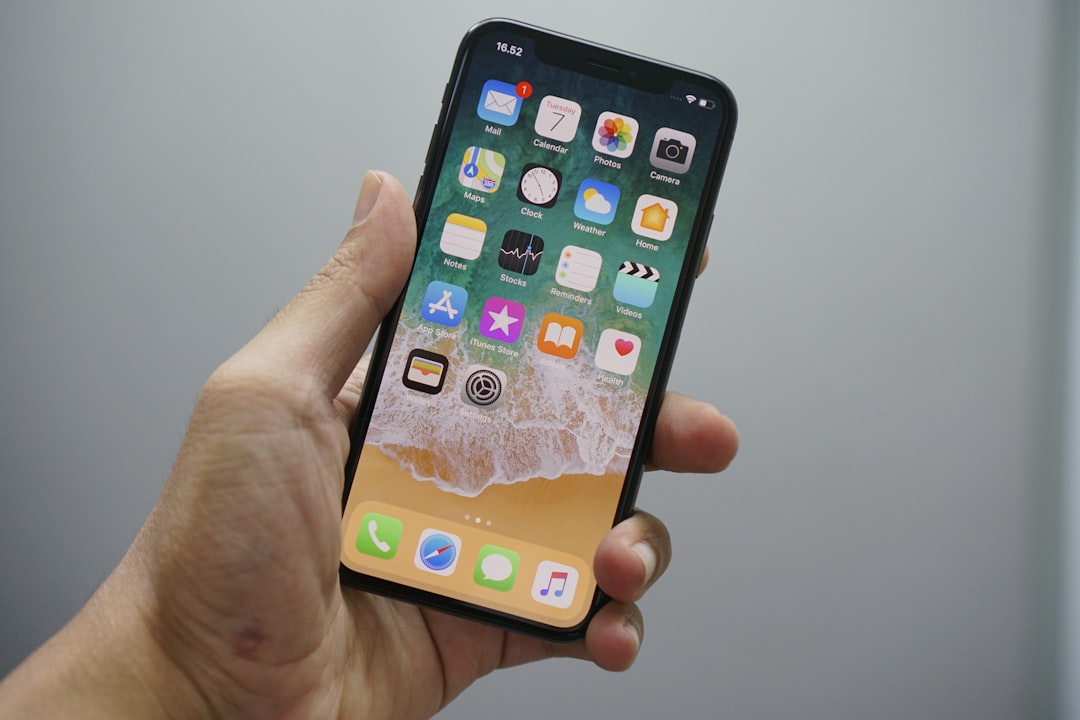
You reach for your iPhone and the screen is completely dark — no lock screen, no Apple logo, nothing. The phone may still buzz with notifications or chime when plugged in, but the display stays pitch black. This maddening situation, widely known as the iPhone black screen of death, is one of the most searched iPhone problems of 2026, and it's more recoverable than it looks. Follow the steps below in order, from the quickest fix to the most advanced, and you'll cover every scenario short of physical hardware destruction.
Why Does an iPhone Screen Go Black?
Before reaching for any buttons, it helps to understand what's likely behind the problem. The causes fall into two broad camps:
- Software issues: A failed iOS update, an app conflict, or a system crash can freeze the display driver entirely, leaving the phone technically "on" but visually dark.
- Hardware issues: Physical damage to the screen connector, a failed display panel, liquid exposure, or overheating to the point of component failure can all kill the picture.
Other common triggers include a completely drained battery, firmware corruption, and — especially relevant in summer — leaving your iPhone in direct sunlight or a hot car. When the device overheats, it can trigger a protective shutdown that looks indistinguishable from a hardware failure. What happened right before the screen went black is your best clue: if it followed an iOS update, the software is the prime suspect; if the phone was just dropped, physical damage is more likely.
Step 1: Charge the iPhone First
Before touching any buttons, rule out a dead battery. Connect your iPhone to a power source using an Apple-certified charger and cable — third-party cables can fail to regulate voltage properly and may cause display glitches. Let it charge for at least 30 minutes. If a battery icon appears on screen, the display is working and the culprit was simply a depleted battery. If the screen stays black but you hear the charging chime, the display problem runs deeper — move to the next step. Also check the charging port for lint or debris that could block a solid connection.
Step 2: Force Restart Your iPhone
A force restart is not the same as a regular restart. It hard-resets the device at the hardware level without erasing any data, and it can clear a software hang or crash that is keeping the screen dark. The button sequence varies by model — use the correct one for your iPhone below.
iPhone 8, SE (2nd/3rd Gen), X, 11, 12, 13, 14, 15, 16, and 17
This is the sequence Apple recommends on its official support page for all Face ID iPhones and newer Touch ID models:
- Press and quickly release the Volume Up button.
- Press and quickly release the Volume Down button.
- Press and hold the Side button until the Apple logo appears — this can take 10–20 seconds, so keep holding.
- Release the Side button when the logo appears and wait for the phone to reboot.
Important timing tips: Do not hold Volume Up or Volume Down — just tap and release each one quickly. There should be no pause between the three presses. If Siri or the power slider appears, ignore it and keep holding the Side button until the Apple logo shows.
iPhone 7 and iPhone 7 Plus
- Press and hold the Volume Down button and the Sleep/Wake (Side) button at the same time.
- Keep holding both until the Apple logo appears, then release.
iPhone 6s, SE (1st Gen), and Older Models
- Press and hold both the Home button and the Power (Top or Side) button simultaneously.
- Hold for at least 10 seconds until the Apple logo appears, then release.
After the force restart, you will need to unlock your iPhone with your passcode — Face ID and Touch ID are not available until the first unlock after a reboot.
Step 3: Charge for Longer if the Phone Still Won't Turn On
If the force restart produced nothing — no logo, no vibration — the battery may be too depleted even to reboot. Plug the phone into a wall outlet (not a computer USB port, which delivers less power) with a known-good cable and leave it untouched for one full hour. Then attempt the force restart sequence again. A completely flat battery sometimes needs this extended charge window before the phone has enough power to respond.
Step 4: Use Recovery Mode
If the force restart fails and the phone still shows signs of life when connected to a computer, Recovery Mode is the next step. It lets you reinstall iOS without necessarily wiping your data.
- Connect your iPhone to a Mac (open Finder) or a Windows PC (open iTunes or the Apple Devices app).
- Perform the force restart sequence for your model, but this time keep holding the final button even after the Apple logo appears.
- Continue holding until the Recovery Mode screen appears — it shows a cable icon pointing toward a laptop.
- In Finder or iTunes, a prompt will appear offering Update or Restore.
- Choose Update first — this reinstalls iOS without erasing your photos, messages, or apps.
- Only choose Restore if Update fails; a restore erases the phone and installs a clean copy of iOS.
A successful Recovery Mode repair brings the phone back to the setup screen. If you chose Update, your data should still be intact.
Step 5: DFU Mode (Last Software Resort)
Device Firmware Update (DFU) mode reloads both the software and the underlying firmware — it is the deepest type of restore available. Only attempt this if Recovery Mode didn't work. Warning: a DFU restore will erase everything on your iPhone. Only proceed if you have a current backup, or if the alternative is losing the phone entirely.
For iPhone 8 and newer, the general sequence involves: pressing Volume Up then Volume Down, then holding the Side button until the screen goes black, then simultaneously holding Volume Down while continuing to hold Side — with precise timing for each phase. Because the exact timing is critical and varies slightly by model, follow Apple's official DFU restore instructions carefully before attempting this step.
Step 6: Contact Apple Support
If a DFU restore doesn't bring the screen back, the problem has moved from software into hardware territory — a failed display panel, a damaged screen connector, a dead battery, or a logic board issue. At this point, visit an Apple Store or an Apple Authorized Service Provider. You can schedule a repair appointment at Apple's support site. If the phone is under AppleCare+, accidental damage coverage may reduce your out-of-pocket cost significantly.
Before you go, consider the phone's age and condition: a persistent black screen after every software fix points to battery or logic board failure, and on an older model it may be worth comparing repair costs against the phone's current market value.
How to Prevent a Black Screen in the Future
- Keep iOS updated: Go to Settings > General > Software Update regularly. Many black screen bugs are patched in point releases.
- Avoid extreme heat: Keep your iPhone out of direct sunlight and hot cars. Excessive heat can damage display components and trigger protective shutdowns.
- Monitor battery health: Navigate to Settings > Battery > Battery Health. If maximum capacity is significantly reduced, a battery replacement can prevent unexpected shutdowns.
- Delete unstable apps: Apps that crash often can force system restarts that present as a black screen. Remove any app that regularly freezes the interface.
- Back up regularly: Use iCloud or Finder/iTunes backups so that if a restore is ever necessary, your data survives it. Enable automatic iCloud backups at Settings > [Your Name] > iCloud > iCloud Backup.
FAQ
Will a force restart delete my photos and data?
No. A force restart only refreshes the system at the hardware level. It does not erase photos, messages, apps, or any settings. It is the safest first fix when the screen is black.
My iPhone vibrates and plays sounds but the screen stays black — what does that mean?
That combination strongly suggests a software crash or a frozen display driver rather than a fully dead phone. Run the force restart sequence for your model first; it resolves the majority of these cases.
How long should I charge an iPhone with a completely black screen before trying to turn it on?
Plug it into a wall outlet (not a USB computer port) using a certified cable and wait at least 30 to 60 minutes. A deeply depleted battery may not respond at all until it has accumulated enough charge to power the reboot sequence.
When should I go to Apple instead of trying fixes at home?
If the screen remains black after a force restart, extended charging, Recovery Mode, and a DFU restore, the issue is almost certainly hardware — a failed display, damaged connector, or battery/logic board problem. That requires professional repair at an Apple Store or Authorized Service Provider.
Sources
- If your iPhone won't turn on or the screen is black – Apple Support
- iPhone Screen Is Black But Phone Is On? 7 Ways to Fix It (2026 Guide) – SalvageData
- iPhone Won't Turn On? Black Screen Fixes That Work – Swappa
- How To Fix an iPhone with a Black Screen – Secure Data Recovery
- iPhone Screen Goes Black Randomly? Causes and 5 Fixes – iSumSoft