How to Hide Apps on iPhone in Settings (2026)
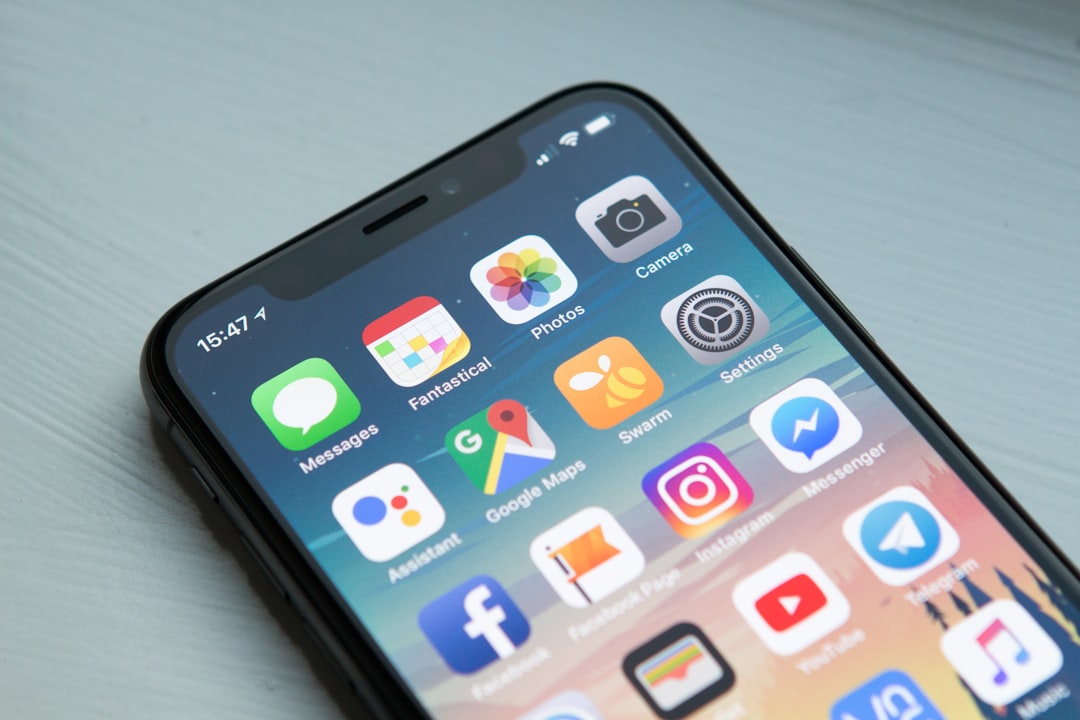
Your iPhone holds your banking app, your health tracker, maybe a dating profile — apps that are genuinely none of anyone else's business. Whether you're handing your phone to a kid, a colleague, or just want a cleaner home screen, iOS now gives you several powerful, built-in ways to hide apps without deleting them or jailbreaking your device. Here is everything you need to know in 2026.
Hiding vs. Locking: Know the Difference First
Before diving into steps, it helps to understand what Apple actually means by each option. Locking an app keeps it visible on your home screen but requires Face ID, Touch ID, or your passcode every time someone tries to open it. Hiding goes further: the app disappears from your home screen entirely and moves to a locked Hidden folder inside the App Library. Think of locking as a deadbolt and hiding as moving the door behind a false wall.
One important limitation: apps that come pre-installed with iOS — such as Calculator, Camera, Clock, Contacts, Find My, Maps, Shortcuts, and Settings — cannot be hidden using the Face ID method, though some can be locked. Only apps you download separately from the App Store are eligible for full hiding.
Also note that hiding is device-specific: the hidden or locked status of an app does not sync with iCloud, so you would need to repeat the process on each of your devices.
Method 1: Hide and Require Face ID (The Strongest Option)
This is Apple's most robust built-in privacy tool, introduced with iOS 18, and it's the one most people are searching for. The app vanishes from your home screen, disappears from Spotlight Search and Siri suggestions, and lands in a locked Hidden folder that requires biometric authentication to open.
- On your home screen, touch and hold the icon of the app you want to hide until the quick actions menu appears.
- Tap Require Face ID (or Require Touch ID / Require Passcode, depending on your iPhone model).
- On the next screen, tap Hide and Require Face ID (or the equivalent for your biometric).
- Authenticate with Face ID, Touch ID, or your passcode when prompted.
- Tap Hide App to confirm.
The app immediately disappears from your home screen and relocates to the Hidden folder at the very bottom of your App Library. To access it later, swipe left past all your home screen pages to reach the App Library, tap the Hidden folder at the bottom, authenticate, and then tap the app to launch it.
You can also view a full list of your hidden apps by going to Settings > Apps > Hidden Apps and authenticating.
Method 2: Remove an App from the Home Screen Only
This is the quickest, lightest-touch approach. The app stays fully installed and accessible in the App Library — it simply no longer clutters your home screen.
- Touch and hold the app icon on your home screen.
- Tap Remove App.
- Choose Remove from Home Screen — not Delete App, which would uninstall it entirely.
The app moves to the App Library and can be found there any time by swiping left from your last home screen page. Keep in mind this method does not prevent anyone from finding the app via Spotlight Search or the App Library — it is a tidiness tool more than a privacy one.
Method 3: Hide an Entire Home Screen Page
If you have a whole page of apps you want out of sight — seasonal apps, work tools you rarely use, or anything you group together — you can hide the entire page at once rather than removing icons one by one.
- Touch and hold an empty area on your home screen until the apps begin to jiggle.
- Tap the row of dots (page indicators) near the bottom of the screen. This zooms out to show all your home screen pages simultaneously.
- Uncheck the page or pages you want to hide by tapping the checkmark beneath each thumbnail.
- Tap Done in the upper-right corner.
The hidden pages — and all the apps on them — are still accessible via the App Library or Spotlight Search, so this is another organizational tool rather than a security measure. To restore a hidden page, repeat the steps above and re-check it.
Method 4: Hide Apps from Siri & Search in Settings
Even if an app is off your home screen, it can still surface in Spotlight Search results or Siri suggestions. To shut those doors too, use the Siri & Search settings.
- Open the Settings app.
- Scroll down and tap Siri & Search (on some iOS versions this may appear as Apple Intelligence & Siri).
- Scroll to the app you want to suppress and tap it.
- Toggle off Show App in Search and Suggest App (along with any other suggestion toggles shown).
After this, the app will no longer appear when someone types in the search bar, show up in Siri recommendations, or appear in predictive prompts on your lock screen or home screen. This works well as a complement to Method 2 — remove the icon and then kill the search trail.
Method 5: Use Screen Time to Restrict Apps
Screen Time is ideal when you want to prevent someone else — especially a child — from accessing certain apps at all. You can hide apps entirely or restrict them by age rating, and you can lock the Screen Time settings behind a separate passcode so others cannot reverse your choices.
- Go to Settings > Screen Time. If it is off, tap Turn On Screen Time and follow the setup.
- Tap Content & Privacy Restrictions and enable the toggle.
- Tap Allowed Apps and toggle off any app you want to hide from the home screen and search results.
- Alternatively, tap Content Restrictions > App Store, Media, Web & Games > Apps and set an age rating — any apps rated above that limit will disappear automatically.
- To lock these settings, go back to Screen Time and tap Use Screen Time Passcode, setting a code different from your main device passcode.
For more detail, see Apple's official guide to locking and hiding apps on iPhone.
Bonus: Stop New Apps from Appearing on Your Home Screen
If you want every newly downloaded app to land quietly in the App Library rather than popping onto your home screen, change one setting:
- Go to Settings > Home Screen & App Library.
- Under Newly Downloaded Apps, select App Library Only.
From that point on, any app you install will be hidden from your home screen by default and accessible only through the App Library — a great way to keep things tidy without any extra effort.
How to Unhide Apps
Unhiding is straightforward regardless of which method you used:
- Face ID Hidden folder: Swipe left to the App Library, tap the Hidden folder, authenticate, then touch and hold the app and tap Don't Require Face ID (or the equivalent). The app will reappear in the App Library and on your home screen.
- Removed from Home Screen: In the App Library, touch and hold the app, then drag it to the left onto any home screen page.
- Hidden page: Touch and hold an empty area on your home screen, tap the page dots, and re-check the hidden page.
- Screen Time: Go back to Settings > Screen Time > Content & Privacy Restrictions > Allowed Apps and toggle the app back on.
Common Pitfalls to Avoid
Hiding is a privacy layer, not an invisibility cloak. Even after hiding an app with Face ID, its name can still appear in Screen Time reports, Battery Usage by App in Settings, and your App Store purchase history. If someone has access to those areas of your phone, they may still see evidence of the app's existence.
Hidden apps also do not automatically lose their permissions or stop running in the background. If you have granted an app access to your camera, microphone, or location, those permissions remain active. Periodically review them at Settings > Privacy & Security. For a deeper dive into iPhone privacy best practices, the Apple Personal Safety guide and Bitdefender's breakdown of hidden app security are worth reading.
Finally, remember that family members using Family Sharing have different rules. Children under 13 cannot lock or hide apps at all, and teens aged 13–17 can hide apps, but a parent or guardian in the family group can still see the app was downloaded and monitor its Screen Time usage.
Which Method Should You Use?
Here is a quick cheat sheet:
- Maximum privacy from prying eyes: Hide and Require Face ID (Method 1)
- Quick home screen tidy-up: Remove from Home Screen (Method 2)
- Hide a cluster of apps at once: Hide an entire page (Method 3)
- Stop an app from appearing in search: Siri & Search settings (Method 4)
- Parental controls or sharing a device: Screen Time (Method 5)
For the best results, combine methods — for example, using Face ID hiding alongside disabling Siri suggestions and turning off notifications for that app at Settings > Notifications. That way, the app stays truly out of sight and out of mind. For more on organizing your home screen, see Apple's official Home Screen and App Library guide.
FAQ
Can I hide built-in Apple apps like Camera or Settings?
No. Apps that come pre-installed with iOS — including Calculator, Camera, Clock, Contacts, Find My, Maps, Shortcuts, and Settings — cannot be fully hidden using the Face ID method. You can remove some of them from your home screen, but they will remain in the App Library. Only apps you download from the App Store can be placed in the Face ID–protected Hidden folder.
Will hiding an app delete its data or stop it from updating?
No. Hiding an app in any of the methods described here keeps it fully installed. Its data is preserved, it continues to receive App Store updates, and it may still run background processes unless you manually restrict it. Think of hiding as changing where the app appears, not what it does.
Does the hidden status sync across all my Apple devices?
No. When you lock or hide an app, that status applies only to the specific iPhone you set it on. It does not sync through iCloud, so you would need to repeat the process separately on any other iPhone or iPad you own.
Can someone still find my hidden app in Screen Time or purchase history?
Yes. Even after using the Face ID Hide option, an app's name can still appear in Screen Time reports, Battery Usage by App in Settings, and your App Store purchase history. Hiding changes where an app is visible on your home screen, but it does not erase records of its existence from system logs or purchase history.
Sources
- Lock or hide an app on iPhone – Apple Support
- Lock or hide apps on your iPhone – Apple Personal Safety
- Organize the Home Screen and App Library on your iPhone – Apple Support
- How to Hide Apps on iPhone: 101 Guide for Beginners – Bitdefender
- A visit to the App Library: Hiding and deleting apps on iOS – Six Colors