How to Hide Apps on iPhone 11: 5 Methods That Work
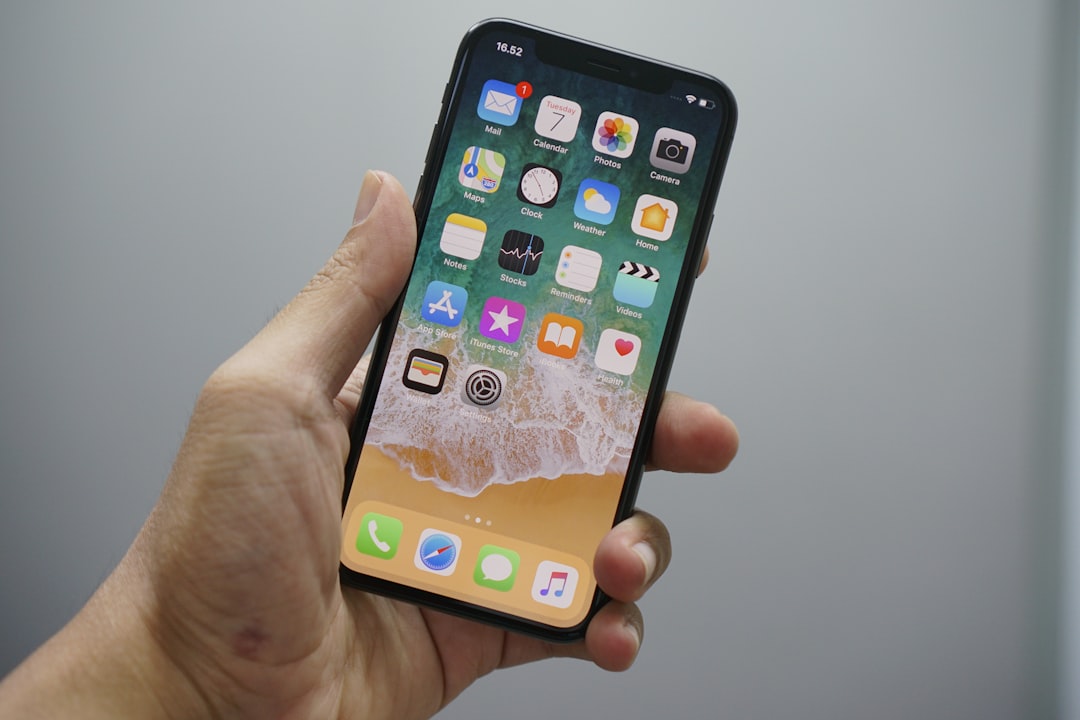
Your iPhone 11 knows everything about you — your banking details, your messages, the apps you'd rather keep private. Whether you're handing your phone to a child, a coworker, or simply want a cleaner home screen, iOS now gives you real, built-in tools to hide apps without deleting a single one. Here are five methods ranked from quickest to most secure, all verified to work on the iPhone 11 in 2026.
First: Make Sure Your iPhone 11 Is on iOS 18
The most powerful hiding features require iOS 18, which Apple confirmed is fully compatible with the iPhone 11. Before you start, verify your software version by going to Settings → General → Software Update. If an update is available, tap Download and Install — make sure your phone is connected to Wi-Fi and has enough battery charge before you begin.
Method 1: Hide an App with Face ID (iOS 18 — Most Secure)
This is the gold-standard method introduced in iOS 18. It moves an app into a locked, hidden folder that requires Face ID, Touch ID, or your passcode to access — and scrubs the app from Spotlight search and Siri as well.
- Find the app on your Home Screen or in the App Library.
- Long-press the app icon until the context menu appears.
- Tap Require Face ID.
- Select Hide and Require Face ID (not just "Require Face ID," which only locks without hiding).
- Authenticate with Face ID or your passcode when prompted.
- Tap Hide App to confirm.
The app will vanish from your Home Screen and App Library. It moves to a dedicated Hidden folder at the bottom of the App Library, which itself requires Face ID to open. Notifications from that app are also suppressed, so nothing surfaces to reveal its presence. Note that only apps downloaded from the App Store can be hidden this way — core system apps like Settings or Camera cannot be hidden using this method.
To unhide an app later, authenticate into the Hidden folder, long-press the app, and select Don't Require Face ID. Alternatively, go to Settings → Apps → Hidden Apps to manage everything from one place.
For the official walkthrough, see Apple's support page on locking or hiding apps.
Method 2: Remove an App from the Home Screen (All iOS Versions)
This is the fastest, no-fuss option. It won't offer true privacy — the app stays visible in the App Library and can be found via Search — but it's perfect for simply decluttering your home screen without touching any settings.
- Long-press the app icon until the menu appears.
- Tap Remove App.
- Select Remove from Home Screen — not "Delete App," which uninstalls it entirely.
The app moves to the App Library, which you can reach by swiping left past all your home screen pages. To restore it to the home screen, find it in the App Library, long-press it, and drag it back to the desired page.
Method 3: Hide an Entire Home Screen Page
If you have a whole collection of apps you want out of sight at once — say, a page of games or social media — iOS lets you hide the entire page in seconds.
- Long-press any empty area on the Home Screen until the apps start jiggling (jiggle mode).
- Tap the row of dots at the bottom of the screen (the page indicator).
- Tap the checkmark below any page thumbnail to uncheck it and hide that page.
- Tap Done.
The apps on hidden pages remain fully installed and accessible through the App Library or Spotlight Search — the page just disappears from your everyday navigation. To bring a page back, repeat the steps and re-check it.
Method 4: Use Focus Mode for Context-Based Hiding (iOS 15+)
Focus Mode, introduced in iOS 15, lets you show only selected home screen pages and apps depending on what you're doing — work, sleep, personal time, and more. When a Focus is active, all other pages (and their apps) are hidden; the moment you switch off the Focus, everything reappears automatically.
- Go to Settings → Focus.
- Tap an existing Focus (like "Work") or tap + to create a custom one.
- Under Home Screen, tap Customize Screens.
- Deselect the pages you want hidden while this Focus is active.
- Optionally, toggle on Hide Notification Badges for extra discretion.
- Activate the Focus from Control Center whenever you need it.
Keep in mind that Focus Mode hides apps but does not block them — a determined user can still reach any app through the App Library. For true blocking (useful for parental controls), combine Focus Mode with Screen Time.
Learn more about setting up Focus profiles on Apple Support.
Method 5: Use Screen Time to Restrict Built-In Apps
Screen Time's Content and Privacy Restrictions can hide Apple's own built-in apps (like Mail, Safari, or FaceTime) from the home screen entirely. This method is especially useful for parental controls on a shared device.
- Open Settings → Screen Time. If Screen Time is off, tap "Turn On Screen Time."
- Tap Content & Privacy Restrictions and enable the toggle.
- Tap Allowed Apps.
- Toggle off any built-in app you want hidden.
The app will disappear from the home screen and cannot be found via Search. Toggle it back on to restore it. Note that this method only works for Apple's native apps — third-party apps from the App Store require the other methods above.
Bonus: Offload Apps to Hide Them and Save Storage
If storage is a concern, offloading is a clever hybrid move. It removes the app itself from your device while preserving all its data. The app icon stays on your home screen with a small cloud symbol; tap it and the app reinstalls automatically with all your data intact. Go to Settings → General → iPhone Storage, select the app, and tap Offload App. You can also enable automatic offloading of unused apps via Settings → App Store → Offload Unused Apps.
Common Pitfalls to Avoid
- Hidden apps still appear in Settings → General → iPhone Storage. If someone checks your storage list, they can see every installed app regardless of hiding method.
- App Store purchase history isn't hidden automatically. To hide an app from your purchase history, open the App Store, tap your profile icon, go to Purchased, swipe left on the app, and tap Hide.
- Widgets can betray you. Even a fully hidden app may still display data through a widget on your screen — remove any widgets associated with apps you're hiding.
- Notifications from hidden apps (iOS 18 method) are suppressed — useful for privacy, but remember you won't get alerts from messaging or time-sensitive apps while they're hidden.
- Core system apps cannot be hidden via Face ID. Apps like Phone, Messages, or Safari are exempt from the iOS 18 Hide feature.
How to Find a Hidden App You Can't Locate
If you've hidden an app and can't remember where it went, try these steps: Swipe left past all home screen pages to reach the App Library and scroll to the Hidden folder at the bottom (authentication required). You can also go to Settings → Apps → Hidden Apps. For apps simply removed from the home screen, a Spotlight Search (swipe down on any home screen page and type the app name) will find them instantly.
For a full rundown on locating missing apps, check Apple's official guide to finding apps on iPhone.
Which Method Should You Use?
Here's a quick cheat sheet: for maximum privacy, use the iOS 18 Face ID hide method. For a quick tidy-up with no security requirement, Remove from Home Screen is fastest. To hide a batch of apps situationally, use Focus Mode. To lock built-in Apple apps away from kids, go with Screen Time. And if storage matters, Offload is your friend. Most users will get the best results by combining two or three of these methods together — for example, removing an app from the home screen AND disabling it in Siri & Search (Settings → Siri & Search → select app → toggle off Show App in Search).
For even more privacy guidance, MacRumors has a detailed breakdown of the iOS 18 hide and lock features.
FAQ
Can I hide apps on my iPhone 11 without iOS 18?
Yes. You can remove apps from the Home Screen, hide entire Home Screen pages, use Focus Mode (iOS 15+), and apply Screen Time restrictions — all without iOS 18. However, the most secure method (hiding apps in a Face ID-locked folder) requires iOS 18 or later, which is compatible with the iPhone 11.
Will hidden apps still receive notifications on iPhone 11?
It depends on the method. Apps hidden using the iOS 18 Face ID method have their notifications fully suppressed — nothing will appear on your lock screen or notification center. Apps simply removed from the Home Screen (but still in the App Library) continue to send notifications normally.
Can someone find my hidden apps by checking iPhone Storage?
Yes. Regardless of which hiding method you use, every installed app still appears in Settings → General → iPhone Storage. If complete concealment is needed, also consider hiding the app from your App Store purchase history by swiping left on it in the Purchased list and tapping Hide.
Can I hide Apple's built-in apps like Safari or Messages on iPhone 11?
Built-in Apple apps cannot be hidden using the iOS 18 Face ID method. However, you can remove many of them from the Home Screen or restrict them via Screen Time → Content & Privacy Restrictions → Allowed Apps. Core apps like Phone or Settings cannot be fully removed.
Sources
- Lock or hide an app on iPhone – Apple Support
- If you can't find an app on the Home Screen – Apple Support
- Hide and unhide apps in your App Store purchase list – Apple Support
- iOS 18: How to Hide Apps on iPhone – MacRumors
- How to Hide Apps on iPhone – Beebom Gadgets
- How to Hide and Lock Apps on iPhone and iPad – Avast
- iOS 18 will let you hide and lock apps – TechCrunch